iPads Realistic Phone Drop Test Phone Apps, Charging, and Locking
Home screen apps, camera tips, battery care, couch mini-games, and how to keep other players off your device.
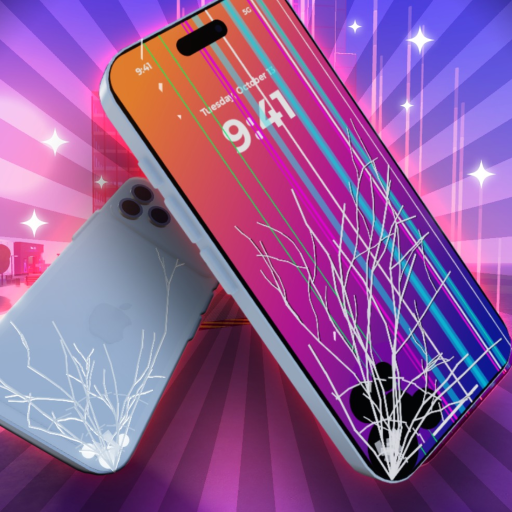
The joke of iPads Realistic Phone Drop Test is that the phones are not just breakable props—they behave like pocket computers until you yeet them off Sky Tower. Learning the app layer makes the sandbox feel alive between smash sessions and answers the player FAQ that never goes away: how do I stop someone from stealing my phone?
You need a firm grip on Controls first (Q / Phone, E pickup). Fresh accounts should skim Getting Started so they already own a charged device before diving into apps.
Opening the phone
- Pick up your owned phone with E (or the mobile Pick up prompt).
- Press Q / tap Phone so the device is held in hand.
- Follow the focus / interaction hint if the UI asks you to look at the screen.
- Swipe up to reveal the home screen.
If swipe up does nothing, confirm the phone is powered on and not sitting at zero battery. A black glass slab will not open apps until you visit a charger. Foldables such as Duo-style models may need an extra unfold / H-style prompt in some recordings before the full canvas appears—watch for on-screen hints when the device is hinged shut.
Home screen app list
Exact icons can shift with updates, but sessions consistently show a consumer-style dock:
- Camera — Capture screenshots of cracks, water warnings, and flex tests for your own Tier List notes.
- Calculator — Silly but functional; community clips love wrong answers as much as right ones.
- Music — Background audio while you scooter between shops.
- Short-video / TikTok-like feed — Scrollable entertainment without leaving the place.
- Weather — Flavor app that reinforces the “real phone” fantasy.
- Maps — Orientation help on a busy commercial map.
- Clock — Time display / alarm flavor.
- Mini-games (Fruit Ninja style and similar) — Best enjoyed on the couch for passive fun while friends repair or farm.
Tap an icon once the home screen is up. Use the gesture the UI shows to return home—usually another swipe or a home affordance at the bottom. Avoid opening apps while standing on an elevator pad; you can miss the floor prompt and ride to the roof accidentally.
Camera and photos
Camera is the most useful “serious” app for wiki-minded players. Before and after a drop, snap the screen state so you can compare durability fairly (one variable at a time—see Drop Test Tips). Photograph liquid-detected banners, bent frames, and spiderweb glass. Those shots help you decide whether to repair at the Genius Bar or smash-swap for chips as taught in How to Get Chips.
Do not expect a full gallery cloud sync. Treat photos as session evidence. If the camera refuses to open, charge the phone and ensure the lens side is not mid-animation from a fold.
Battery drain and charging
Battery level drops during play. Community comments confirm chargers exist specifically because phones run out of power. When the UI warns about low battery or charging becomes unavailable after a water event:
- Stop opening heavy apps.
- Carry the phone to a charger point on the map.
- Complete the charger proximity prompt.
- Wait until the charge state recovers before the next tower run.
Water soak tests can block charging until the device dries or you repair it—liquid-detected messages are a clue. Burning a phone may also kill power systems. Budget chips for repair if you still want that unit’s apps later; otherwise scrap it for the destruction payout and equip a spare.
A dead phone wastes farm time. Charge before long couch mini-game sessions and before helicopter rides so you can still open the UI if you need maps or a quick camera check on the pad.
Couch mini-games as a soft farm
Sit on the couch, open Fruit Ninja-style or other mini-game apps, and play while chatting. Payouts are slower than the sledgehammer store method, but the loop costs no workshop trip and keeps you entertained during repairs. Combine couch time with daily login claims from the chips guide so your session still advances currency even on lazy nights.
Locking your phone so others cannot steal it
Servers hold many players. Phones left on the ground are tempting. Players frequently ask how to lock a device on mobile and desktop so strangers cannot walk off with it.
Practical habits that work with current prompt design:
- Keep the phone held with Q / Phone whenever you stand in crowded shop rows.
- Do not drop your only flagship at spawn to “show friends” unless you are ready to chase it.
- Use any lock / secure control the phone UI exposes in your build—watch for padlock icons or settings toggles after swipe-up. If your version shows a lock affordance, enable it before laying the device on a table.
- On mobile, open Phone, swipe to settings or lock if present, then verify a teammate cannot trigger Pick up on your unit.
- If someone already grabbed it, check whether a reclaim prompt appears on your original phone pad or whether you must buy/equip another owned model from a brand shop.
Because anti-theft UX can change per patch, treat lock steps as “check the current UI” rather than a permanent keybind. The important mindset: ownership prompts matter. Never leave a freshly purchased Duo on the sidewalk while you admire Sky Tower.
Apps versus destruction goals
Nothing stops you from being a wholesome music listener—until you need chips. A healthy session rhythm looks like:
- Charge and unlock apps.
- Optional couch mini-game while claiming Codes in another tab mentally.
- Workshop smash-swap farm for currency.
- Camera document a fair drop test.
- Repair keepers; charge again.
That loop uses every system the phone UI offers without forgetting the sandbox fantasy. Brand rankings still belong on the Tier List; app quality rarely changes durability, but battery and lock discipline keep expensive phones in your hands.
Quick reference
| Goal | Action |
|---|---|
| Open phone | Own it → Q / Phone → swipe up |
| Use apps | Tap icons on home; return via home gesture |
| Document a test | Camera before and after drops |
| Fix power | Charger prompt; repair if liquid blocks charging |
| Passive fun | Couch + mini-games |
| Anti-theft | Hold phone, use lock if shown, never idle flagships on the floor |
When the UI makes sense, return to Drop Test Tips for soak, burn, and tower technique, or to How to Get Chips when you need the sledgehammer economy. Scripts and automation notes, if you use them, stay on Scripts.
Frequently Asked Questions
Quick answers to the most common questions.
How do I open the home screen?
Pick up your phone, press Q (Phone), then swipe up. If nothing appears, charge the battery and confirm the device is unfolded when required.
Why won’t my phone charge after water?
Liquid-detected states can block charging. Dry/repair at the Genius Bar or accept the damage payout and switch to another owned phone.
How do I lock my phone so nobody steals it?
Keep it held with the Phone action, enable any lock control shown in the phone UI, and never leave expensive models unattended on the ground in busy servers.
Are mini-games worth it for chips?
They are slower than smashing at brand stores but fine for passive couch sessions. Use them between farms, not as your only income.
Which apps are available?
Expect camera, calculator, music, a short-video feed, weather, maps, clock, and casual mini-games. Icons can change with updates.